How to translate text from images: online, Android and iPhone

Cast your mind back to the last time you travelled abroad. Perhaps it was for a relaxing beach holiday, a weekend city break or a business meeting. Part of the appeal of international travel lies in discovering the exotic, exploring the unfamiliar. And if a different language is spoken at your destination, perhaps even a language that uses a different script, remember to take your smartphone with you. In this post we’ll show you how this all-purpose device is even more indispensable than you could ever have imagined.
How do I translate text on my phone?
If you’re out and about and come across text that you’d like to translate, you can simply type it in to any number of free text translator apps that you can download on your smartphone. Perhaps the best known of these is the Google Translate app, which supports 108 languages and is available for both Android and iPhone users. But if you don’t want to waste valuable holiday time painstakingly typing what you see into your phone – accented characters and all – then image translation is for you.
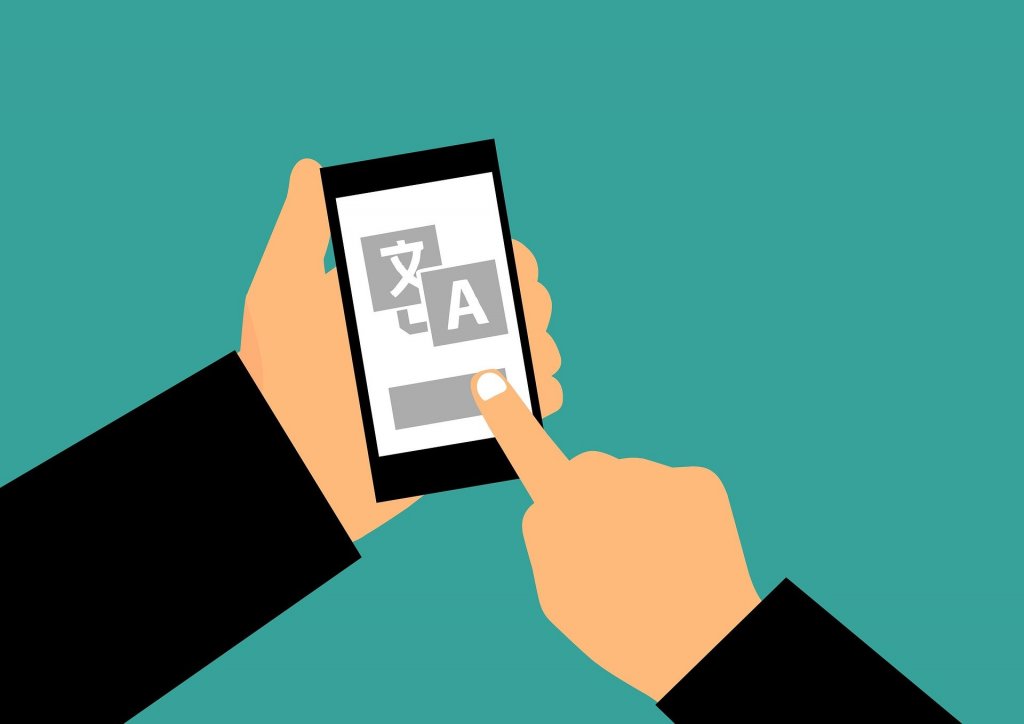
Is there an app that can translate text from a picture?
Ever heard of the saying, “a picture is worth a thousand words”? How about if that picture contains text? Imagine being able to point your smartphone camera at written material, take a photo, and convert image to text. Wouldn’t that make deciphering signposts, restaurant menus, or even handwritten notes that much easier? There are many photo translator apps out there that allow you to do precisely that. Here are our favourites:
Google Translate
Available for Android and iPhone users, and free! You can translate text in images instantly in 94 languages simply by pointing your camera. If instant translation is way too fast for you, or you want to be able to select parts of the text for translation, you can turn the instant feature off and use the scan mode instead. Point your camera at the text and press the camera button. Tap Select All and use your finger to highlight the word or phrase that you’d like to have translated. You can also import photos into the app. If you’re planning to go well off the beaten track and you’re not sure whether you’ll have internet connection, simply download the language pack you need, and this nifty little app will even work offline.
Microsoft Translator
This free app translates between more than 70 languages and is available for Android and iPhone users. You have to press the camera button and actually take a photo for the app to get to work, so unlike the Google Translate app, it doesn’t offer instant translation. Microsoft Translator will work with portrait or landscape pictures, so it’s perfect if you want to capture longer texts. You can also download languages for offline use.
Papago
If you’re heading east, Papago offers amazing Asian language support, including Korean, Japanese, Traditional Chinese and Simplified Chinese, Vietnamese, Thai and Indonesian. In Esperanto, the word “papago” means “parrot”, and if you find yourself in this part of the world, you’ll be glad to have this as your companion. Available for Android and iPhone users, this free app boasts higher accuracy than Google Translate, which tends to fall short when it comes to Asian languages. Want to translate your picture from Chinese to Thai or convert that Japanese image to English text? Papago’s photo translator feature allows you to do just that.
Abbyy TextGrabber
Okay, this one isn’t free, but it’s well worth a mention. Abbyy pioneered optical character recognition – the technology that powers image translation. Its award-winning photo translator and scanner app, Abbyy TextGrabber, offers offline text recognition in 60+ languages and real-time translation directly on the camera screen in 100+ languages online and 10 languages offline.

How can I translate text from an image on my PC?
Image translation apps can help immensely when you’re on your travels, but what about when you’re back home and want to convert your images to translated text on a Mac or PC? With websites like Yandex Translate, you can upload an image, select your language pair or have the site detect the source language automatically, and have your picture translated.
Just a word of advice here: these apps work best with a steady hand. Blurred, poor-quality images are likely to result in lower translation accuracy. And those eye-catching signs with fancy typography could pose a challenge for these apps, too.

And what about when you’re back in the office?
If all that globetrotting has inspired you to consider working or studying abroad, then you’re sure to be in need of translation – think of all those scanned certificates and exam transcripts that you’ll have to put together to support your application. In such cases, you’re better off leaving those image translator apps to one side and contacting a professional language service provider. Your language service provider may well make use of optical character recognition (OCR) tools such as Abbyy FineReader, Adobe Acrobat DC or Microsoft OneNote to digitise your source text, but your text will be translated by a professional who is familiar with the education systems of both your home country and the one that you’ll be moving to. You can rest assured that your qualifications will be accurately conveyed in the translation. You may also need to provide your new employer or learning institute with certified translations. It’s a good idea to check with them exactly what they will accept so that you avoid excessive bureaucracy and unnecessary expense. Our blog post on certified translations will help you avoid the potential pitfalls.
As a translation buyer, you’re unlikely to be producing documents that exclusively contain text. Your marketing content could have attention-grabbing visuals and your financial reports could include charts to illustrate your findings. Your LSP will be able to advise on adding translated alt text to images on web pages, typesetting Adobe Illustrator files in foreign languages, handling non-editable text in images that are embedded in your documents and all manner of other questions you may have on translating text from an image.
About the author
Bethan Thomas DipTrans MCIL has worked in the translation industry for 20 years and is an Adobe InDesign CC Adobe Certified Associate (ACA). She has a keen interest in typography and word art, particularly Arabic calligraphy.


